
- Go to the Settings on your iOS device and click on Mail, Contacts, Calendars.
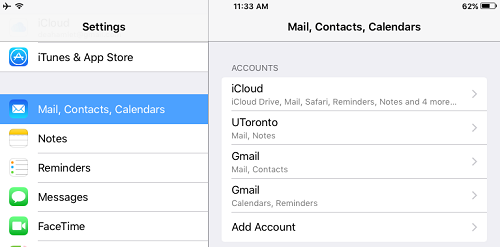
- Click on Add Account.
- Choose Exchange from the options presented.

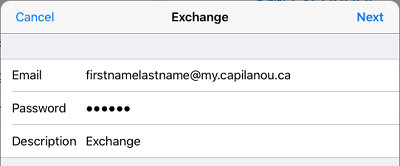
- Type your email and password in the appropriate fields and click Next.
Email: Your Capilano University email address (firstnamelastname@my.capilanou.ca)
Password: Your Capilano University password
Description: Name by which you would like to identify this account
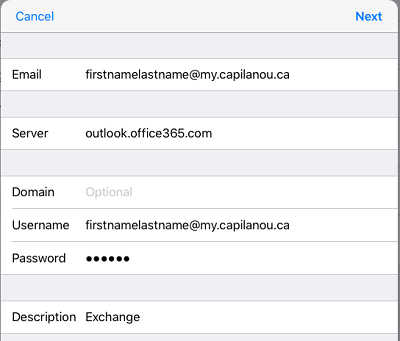
- On the next screen, fill out the requested fields and click Next.
Email: Your Capilano University email address (firstnamelastname@my.capilanou.ca)
Server: outlook.office365.com
Domain: leave blank
Username: Your Capilano University email address (firstnamelastname@my.capilanou.ca)
Password: Your Capilano University password
Description: Name by which you would like to identify this account
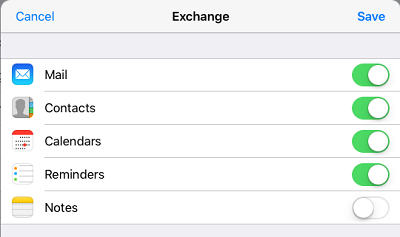
- Choose which information you would like to sync on your iOS device and click Save to complete setup.
See also
- Add an email account using advanced setup.
- Add an email account to Outlook - PC, Mac, Mobile