
Sharing your calendar using Webmail
- Log in to Employee Email. If you need help logging in, please follow the instructions on the Accessing Your Email page.
- On the top-right corner, click Calendar.

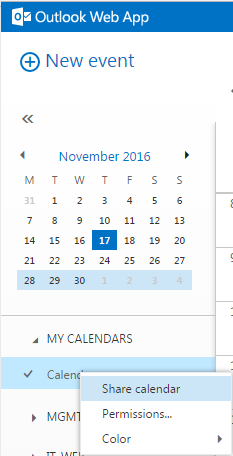
- Right-click on your calendar and then click Share calendar from the pop-up menu.
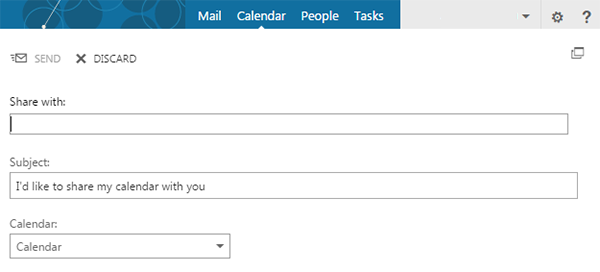
- On the new screen, fill out the recipient in the Share with field.
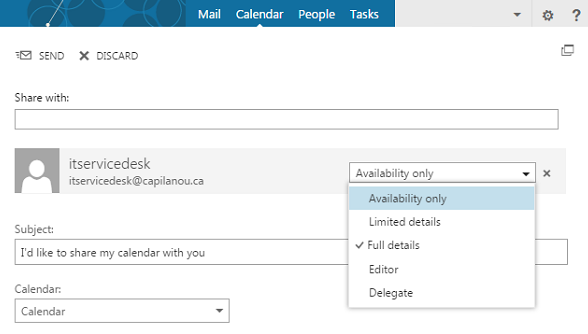
- Once the recipient has been chosen, choose the level of details you would like to share:
Availability only = Time will be shown as "Free,", "Busy," "Tentative," "Working Elsewhere," or "Out of Office"
Limited details = Includes the availability and subjects of calendar items only
Full details = Includes the availability and full details of calendar items
Editor = The recipient will be able to see full details of calendar items and be able to create, edit and delete calendar items
Delegate = The recipient will have full access like an editor and will receive meeting invites on your behalf which they can respond to
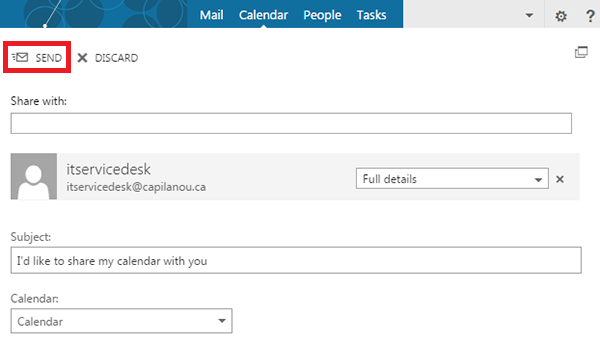
- Click SEND to share your calendar with the recipient.
Sharing your calendar using Outlook
- In Outlook, click Calendar in the bottom-left corner of the Outlook window.

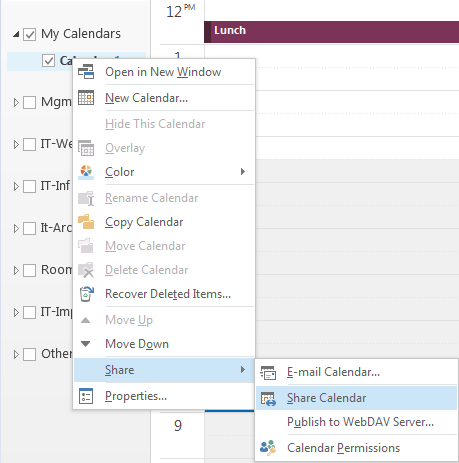
- Right-click on your calendar, choose Share and then click Share Calendar.
- Fill out the recipient in the To field and modify the Subject field if you wish.
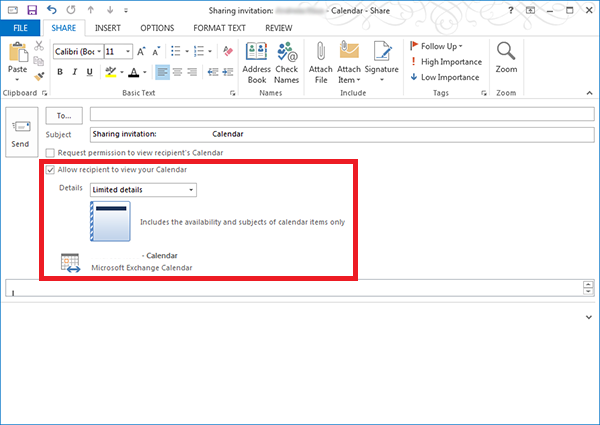
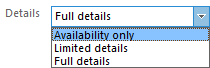
- Choose the level of details you would like to share:
Availability only = Time will be shown as "Free,", "Busy," "Tentative," "Working Elsewhere," or "Out of Office"
Limited details = Includes the availability and subjects of calendar items only
Full details = Includes the availability and full details of calendar items
- Click Send to share your calendar with the recipient.