
Setting up a signature using Webmail
- Log in to Employee Email. If you need help logging in, please follow the instructions on the Accessing Your Email page.
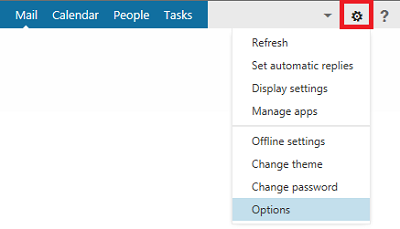
- On the top-right corner, click on the Settings icon and then click Options from the Settings menu.
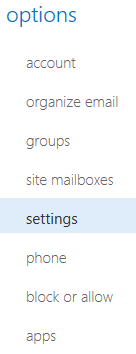
- From the options menu, click settings.
- Within the mail screen, fill out the email signature field and choose Automatically include my signature on messages I send.
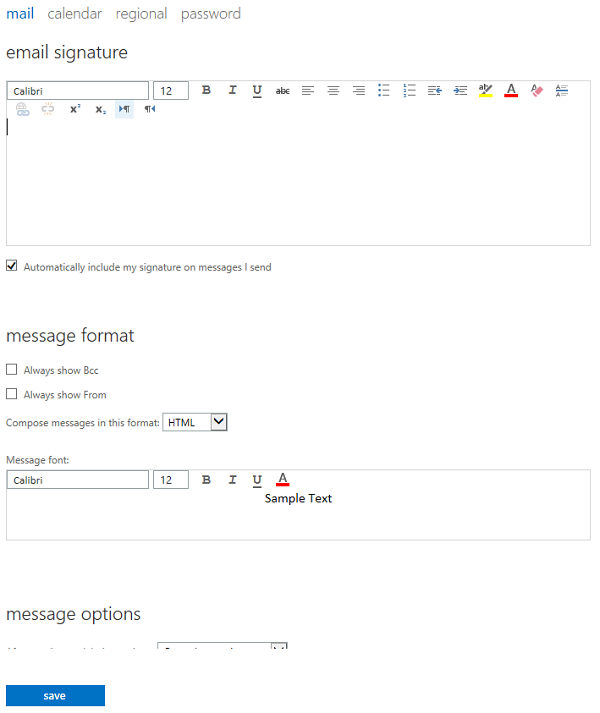
- Click save to turn the signature on.
Setting up a signature using Outlook
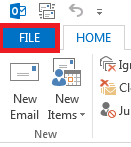
- In Outlook, click FILE in the top-left corner of the Outlook window.
- Click Options.
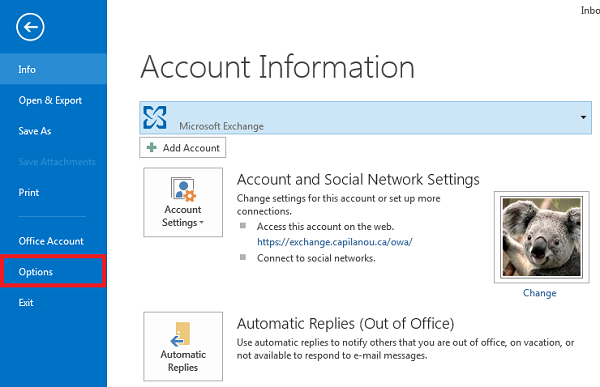
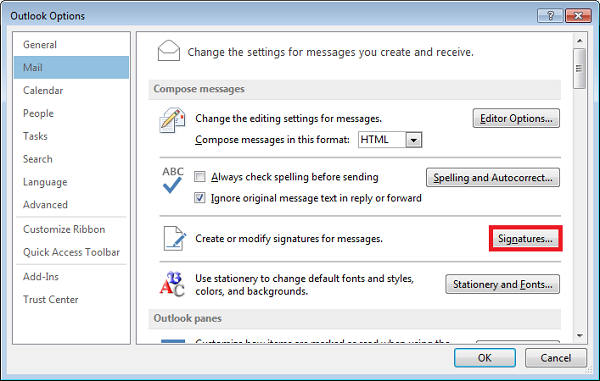
- From the menu on the left side, click Mail and then click Signatures.
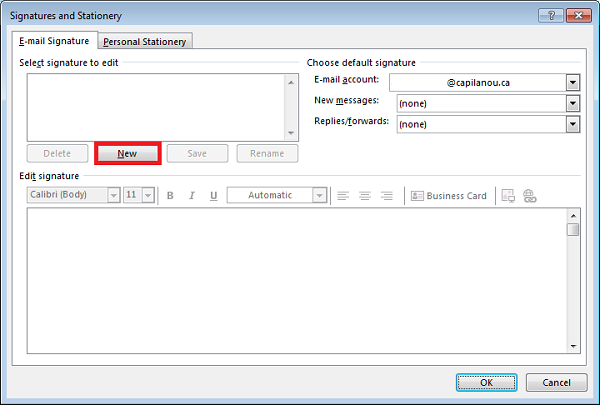
- Click New to create a new signature.
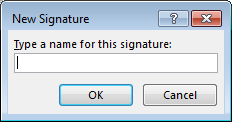
- Type the name of the signature and click OK.
- Fill out the Edit signature field with your chosen signature.
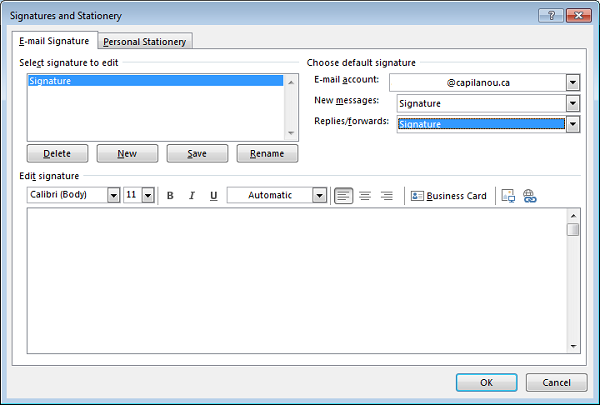
- Choose the new signature in the New messages and Replies/forwards fields.
- Click OK to turn the signature on.