
Download CapU Safe Alert today! The app, powered by AlertAware, is free for students, employees and visitors.

With CapU Safe Alert, you'll be the first to know about emergencies, severe weather incidents, power outages or campus closures.
In the app, you can:
- report an incident;
- request a SafeWalk to your car; and
- customize alerts to get notifications for the campus and student housing areas that matter to you.
Don't wait—CapU will be phasing out the old CapU Safe app by the end of November 2025. Switch now and stay connected.
How to get the app
 To find the app, search for "AlertAware Mobile" on either the Apple App Store or the Google Play Store.
Or visit the below links:
Set-up guides for CapU Safe Alert App
Step 1: Download the app
You can download the app from the links below:
Step 2: Sign in using your Capilano University identification
Select "Sign in with Your Organization."
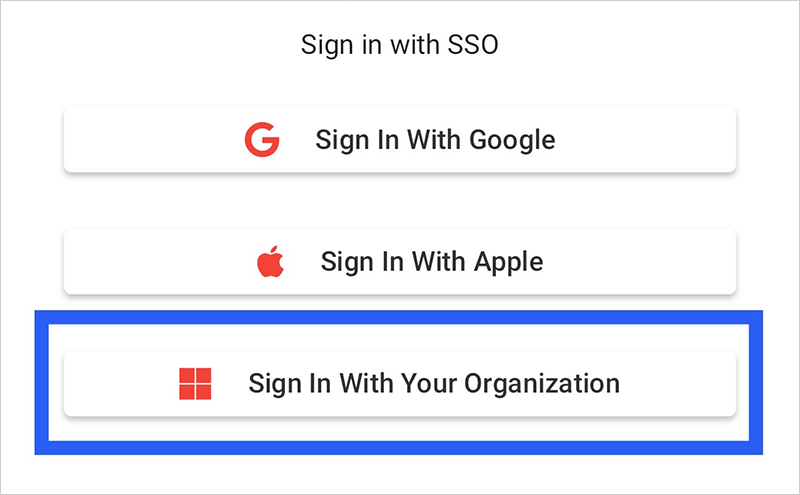
If you are registering on your mobile device, scroll to the bottom of your screen to find the correct button.
Enter your CapU email address and click on "search."
After submitting your CapU email address + Search, the following screen will appear.
Click on "Sign in to your account." Sign in using your SSO (single sign-on) username and password.
Step 3: Complete multi-factor authentication
Step 4: Complete the required fields
Complete your profile information and hit "save."
Step 5: Enable push notifications and location access
Select "Yes" on the form to enable push notifications to your phone from the AlertAware Mobile app.
Select "Yes" to allow location access when using the AlertAware Mobile app. This must be enabled for the geo-locating feature to work when an incident is reported by the user.
Step 6: Set-up complete
Your CapU Safe Alert is now enabled and ready.
Step 1: Download the app
You can download the app from the links below:
Step 2: Complete the sign-up form
Visit AlertAware to register for an AlertAware invitation.
Input your personal information into the sign-up form and submit. Check your email inbox for a new invitation from AlertAware (no-reply@alertaware.com) to accept the invitation.
Step 3: Complete your profile
Complete the form, create your password, and click "sign up."
Check your email inbox for a new invitation from AlertAware (no-reply@alertaware.com) to accept the invitation.
Step 4: Enable push notifications and location access
Select "Yes" on the form to enable push notifications from the AlertAware Mobile app to your phone.
Select "Yes" to allow location access when using the AlertAware Mobile app. This must be enabled for the geo-locating feature to work when an incident is reported by the user.
Step 5: Set-up complete
Your CapU Safe Alert is now enabled and ready.
When activated, you will receive campus safety notifications through this app. To update your preferences, update your profile in the app.
If you experience difficulties installing this app on your phone, please contact safety@capilanou.ca.